Troubleshooting
Most CX Toolbox issues come down to one of three things: a missing or outdated API key, the wrong Kustomer subdomain, or a Sidekick setting that has not been saved yet. Use the checks below to narrow it down quickly.
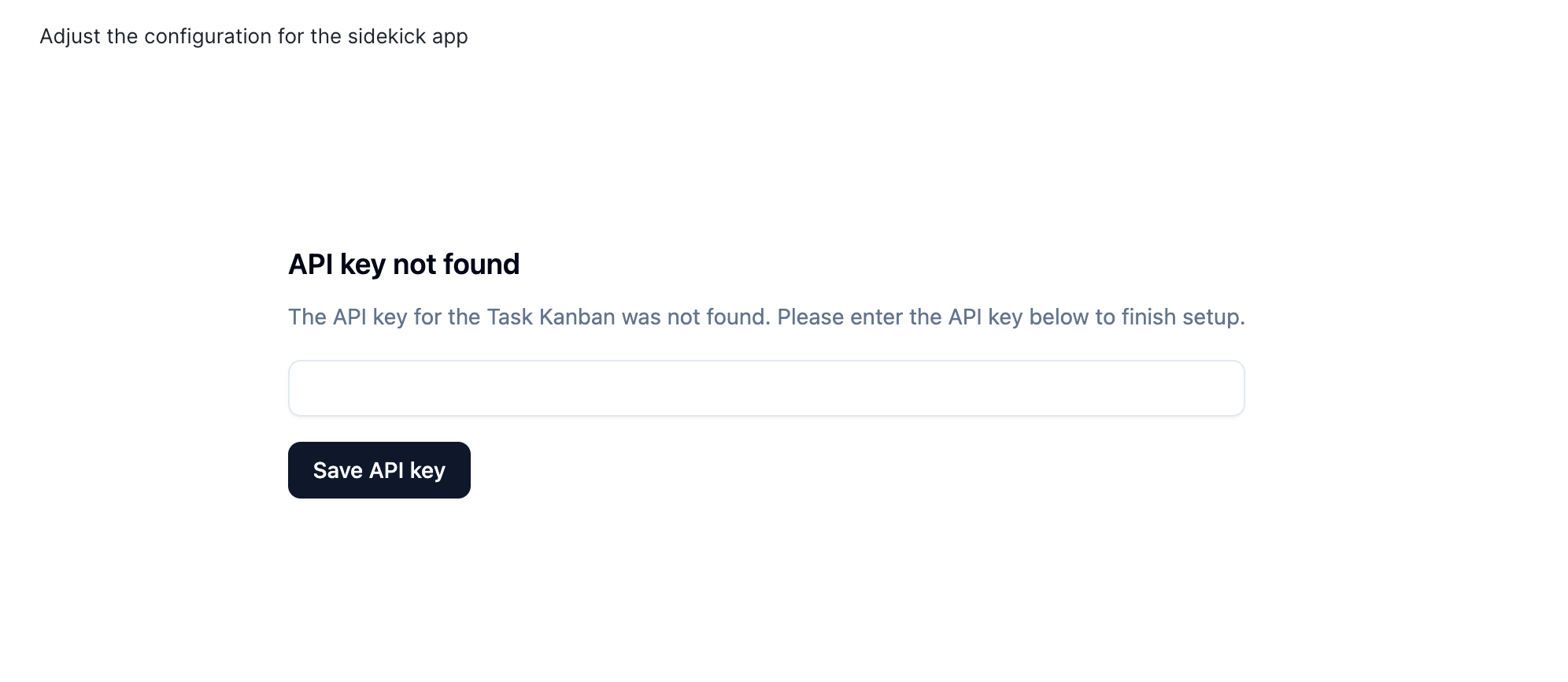
“API key not found”
This means the Kustomer app has not saved a CX Toolbox key yet. In the CX Toolbox Dashboard, open Dashboard Settings, use Reveal API Key (or generate one first), copy the value, paste it into the Kustomer app settings field, and choose Save API key. If there are multiple CX Toolbox widgets installed, repeat this for each place that asks for the key.
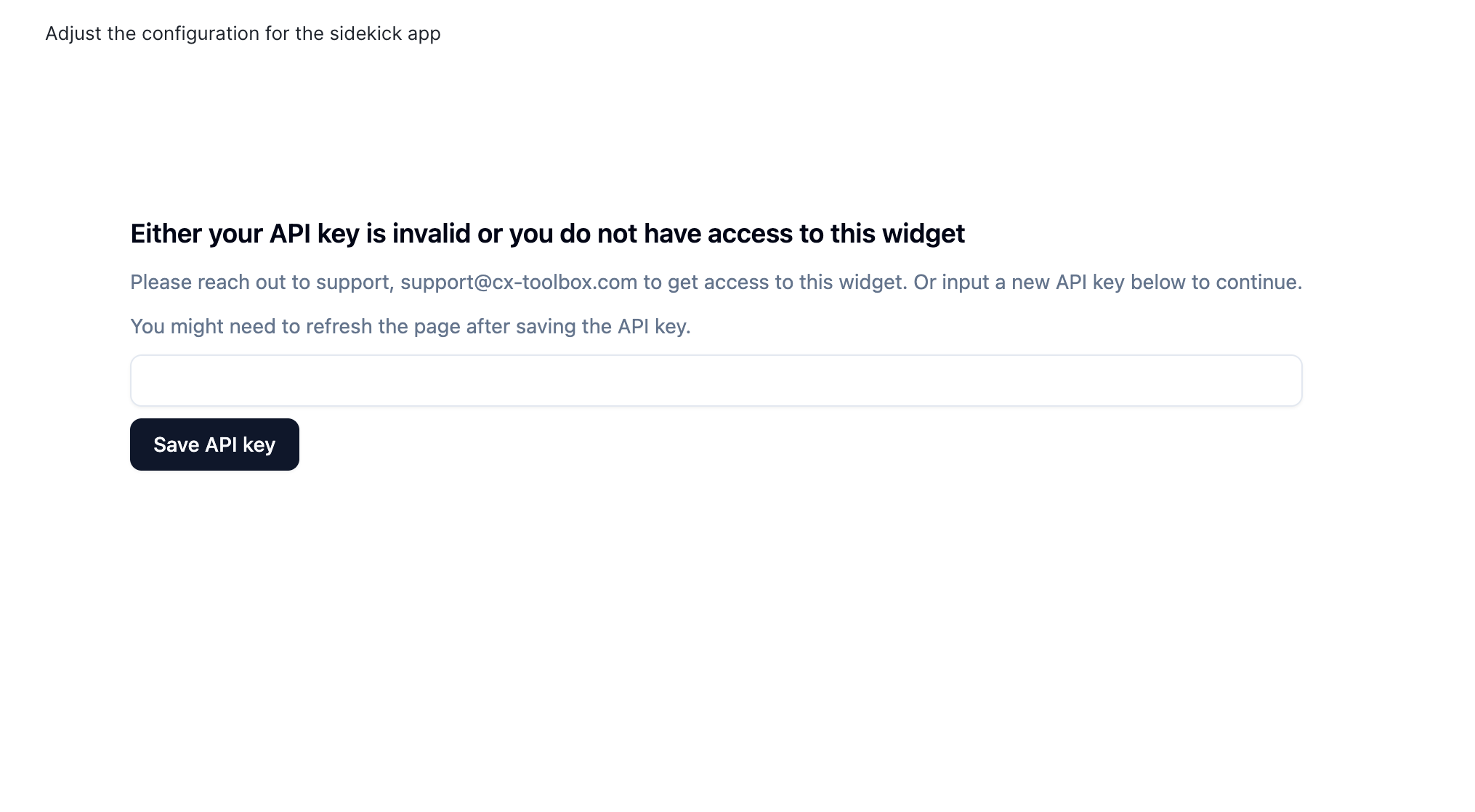
“Invalid API key” or “no access to this widget”
This usually means the saved key is no longer valid for your CX Toolbox organization. The most common cause is a recent Rotate API Key action in the dashboard, which immediately invalidates the previous value. Reveal the current key in Dashboard Settings, replace the old value in Kustomer, save, and refresh the page. If the current key still shows this message, your organization may not have access to that widget; email support@cx-toolbox.com.
- After rotation, update every Kustomer app, widget, or environment that saved the previous key.
- When pasting, remove accidental spaces, extra line breaks, or copied label text.
Data does not load or points at the wrong Kustomer org
- In Dashboard Settings → Step 2, confirm the organization subdomain is only the part before
.kustomerapp.com. Foracme.kustomerapp.com, enteracme, then click Save. - If your team uses a sandbox, check that the sandbox subdomain is set separately and that you are testing in the matching Kustomer environment.
- If a setting was corrected, reload the Kustomer app or reopen the widget so it picks up the saved configuration.
Invites or dashboard access
Use Dashboard → User Management to invite teammates, review pending invitations, and remove access. If an invite does not arrive, confirm the email address was typed correctly, ask the recipient to check spam or quarantine, and resend the invite if needed.
Setup reference: Get started · Sidekick: Sidekick · Task Kanban: Task Kanban