Task Kanban
Task Kanban is a Kustomer app that brings a board-style task experience into your workspace. Install it from the Kustomer App Store, connect it with the same CX Toolbox API key as your other widgets, then adjust settings so tasks, timeline layout, comments, and attribution match how your team works. Attribution depends on both Task Kanban settings and the Task object in Kustomer—see below.
Install Task Kanban from the Kustomer App Store
In Kustomer, open the App Store, find Task Kanban, and install it for your organization. After installation, it appears with your other apps and can be added to timelines or layouts where your team needs it.
Open app settings and enter your API key
In Kustomer, open Settings for the Task Kanban app. Paste the API key from the CX Toolbox Dashboard (Dashboard Settings → Step 1: Generate API Key). It is the same key used for Sidekick and your other CX Toolbox widgets—rotate or replace it in the dashboard if you ever need a new value, then update Task Kanban here.
Save when prompted. If you see an error about a missing or invalid key, see Troubleshooting.
Configure Task Kanban settings
After the API key is accepted, use the Task Kanban configuration screen to set defaults for how tasks are created, displayed, and managed on the board. Options vary by release; save changes when you are done so agents pick up the latest behavior.
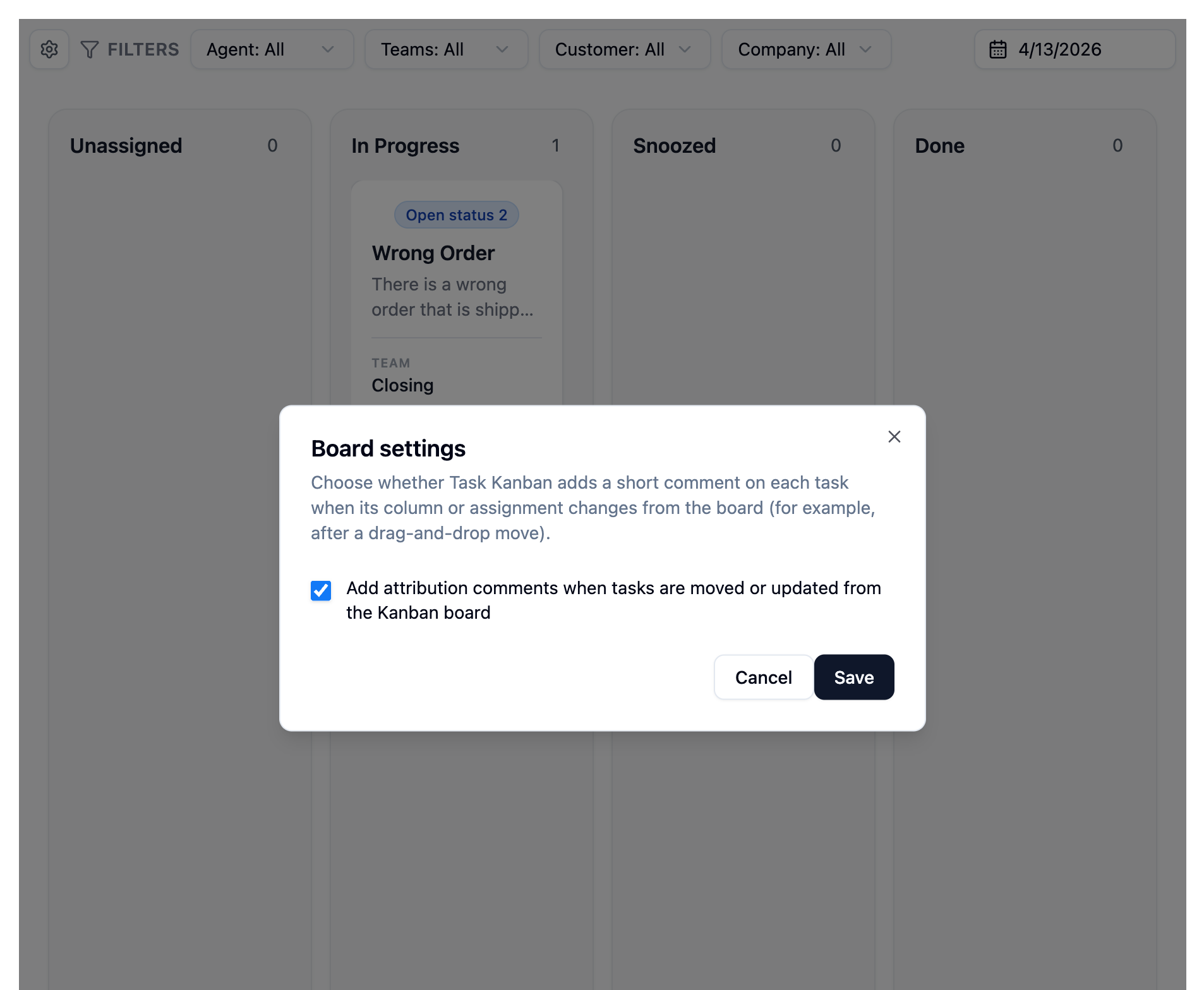
Task Kanban app settings—review options and save so the board matches your workflow.
Prerequisite: timeline layout, comments, and the Task object
Before assignee and attribution appear correctly on tasks in Task Kanban (next section), complete both of the following:
- In Task Kanban app settings, turn on the timeline and comment-related options your workflow needs—for example allowing comments on tasks when your policy permits them. Save your changes. The screenshot below shows this part of the configuration.
- In Kustomer, open settings for the Task object (the Task kobject your organization uses for work items). Enable the fields or toggles Task Kanban relies on for timeline behavior and attribution (for example assignee-related attributes), then save. Task Kanban reads those values from the Task object; if they stay off, attribution may not show even when the board looks configured.
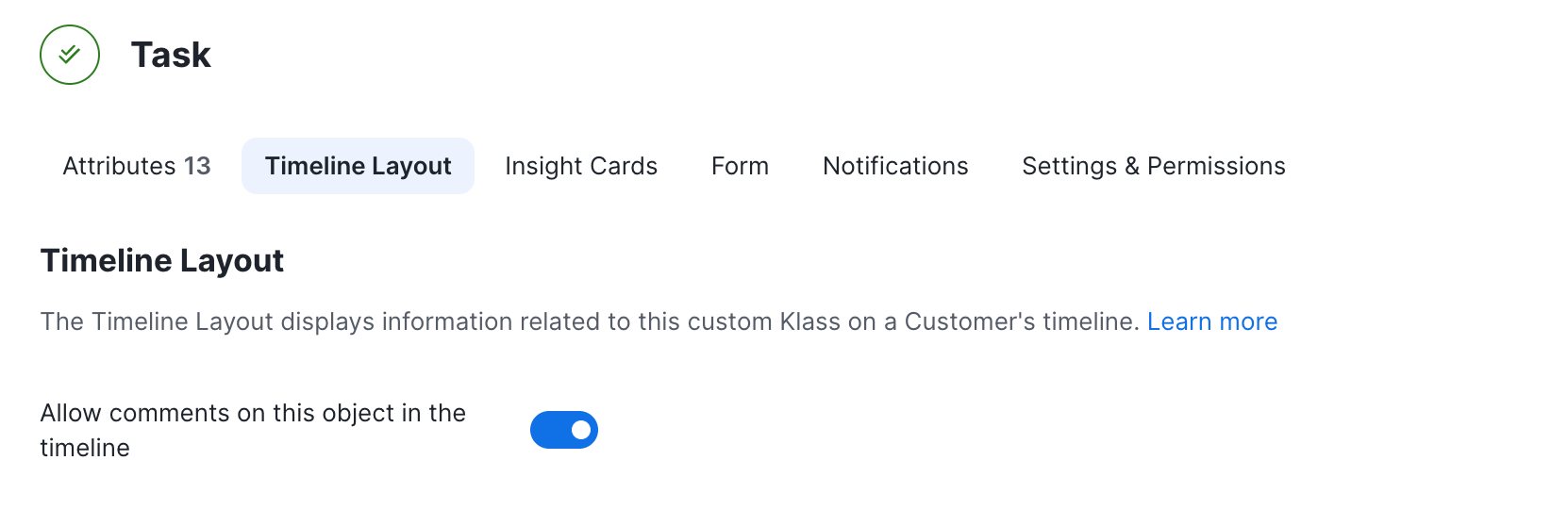
Assignee and attribution
After the prerequisite above—Task Kanban settings saved and the right options turned on on the Task object in Kustomer—tasks can show who they are attributed to so agents see ownership at a glance. If attribution is missing, revisit both places: the toggles in Task Kanban and the field visibility or permissions on the Task kobject.
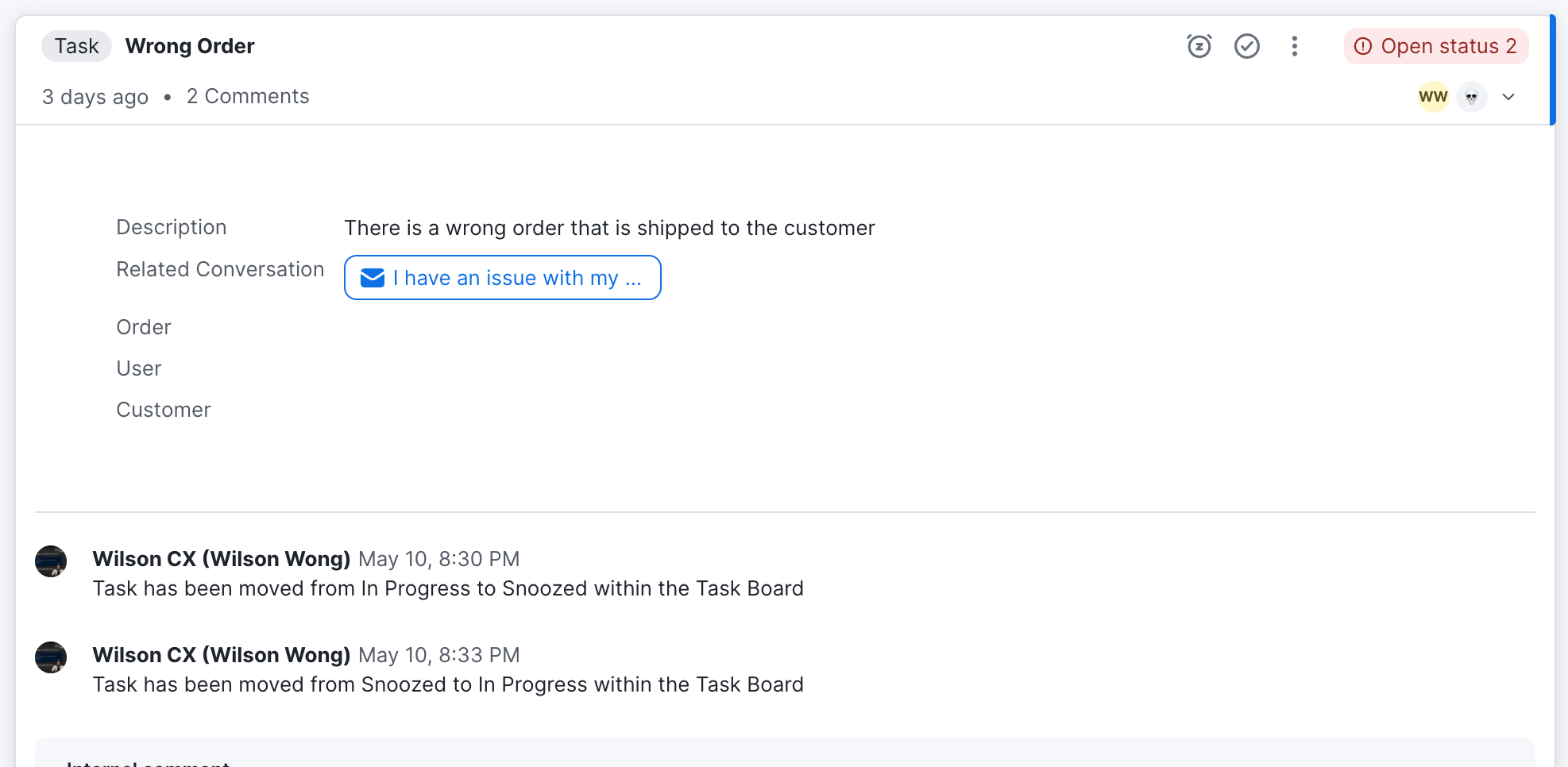
Task Kanban in the agent workspace
Once installed and configured, agents use Task Kanban from Kustomer to move work across columns, open tasks from the timeline, and keep customer work visible alongside conversations.
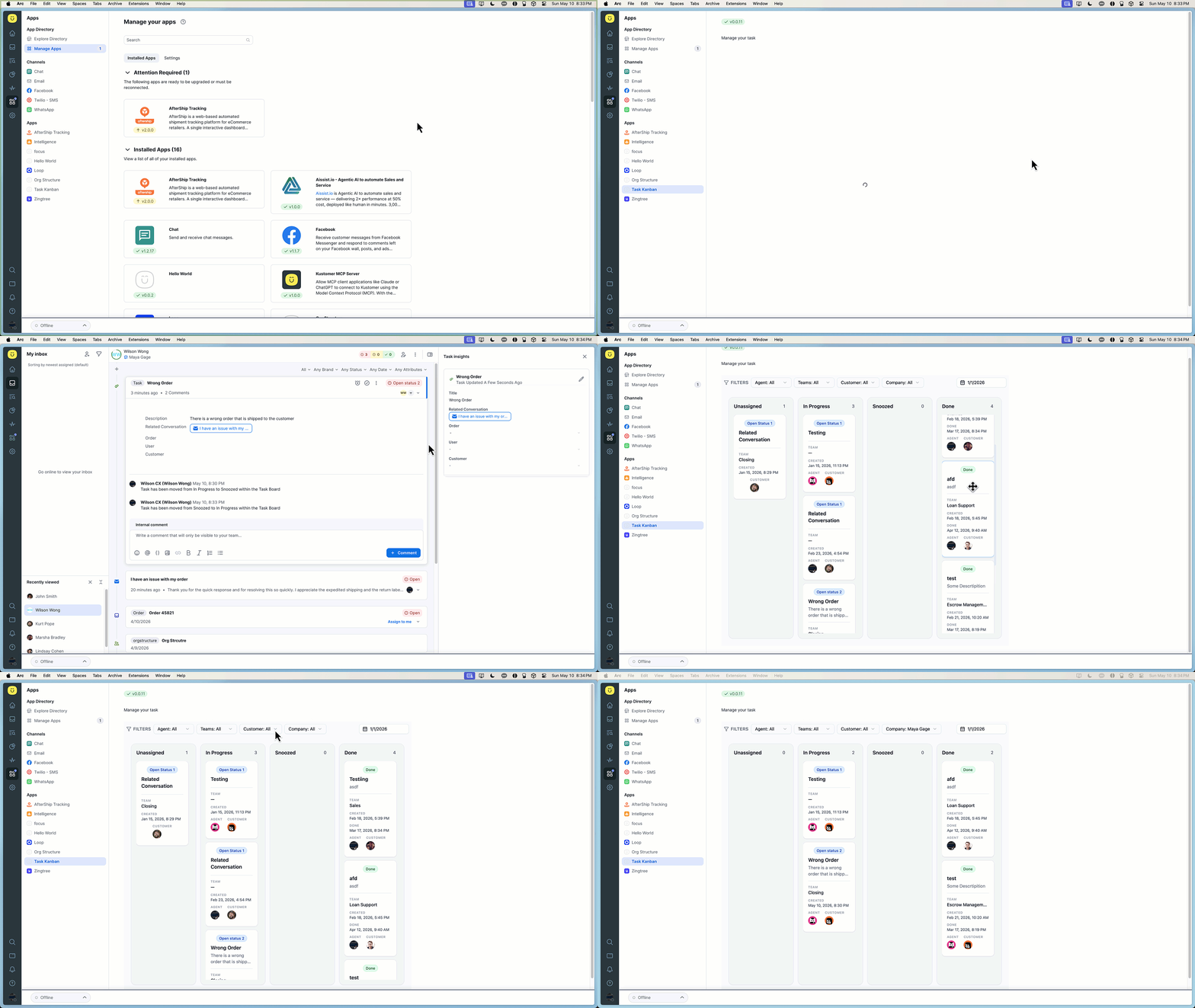
Dashboard and API keys: Get started · Sidekick: Sidekick · Issues: Troubleshooting