Sidekick
Sidekick is a Kustomer app that gives agents a dedicated widget for customer context—search, pinned customers, and the klasses you choose—without leaving the timeline. Install it from the Kustomer App Store, then connect it to CX Toolbox with the same API key you use in the dashboard.
Install Sidekick from the Kustomer App Store
In Kustomer, open the App Store, find Sidekick, and install it for your organization. After installation, the app appears in your apps list like any other Kustomer integration.
Open app settings and enter your API key
In Kustomer, go to Settings for the Sidekick app (app settings, not the global org settings unless your workflow routes you there). Paste the API key from the CX Toolbox Dashboard (Dashboard Settings → Step 1: Generate API Key). It is the same key your team uses for other CX Toolbox widgets.
Save or verify according to the Sidekick UI. Once the key is accepted, Sidekick can call CX Toolbox on behalf of your org.
Choose which klasses agents can use
After the API key is verified, use the Sidekick configuration screen to select which klasses (Kustomer custom objects / kobjects) agents may reference inside the widget. Only checked types appear in Sidekick for your team—tailor the list to what you want visible on the customer timeline (for example orders, tasks, or tracking events).
Administrators can also turn on Allow agents to pin & search customers. When enabled, agents can search for other customers from the widget and pin profiles for quick access; pinned context stays fixed while they move between different customer timelines until they change it.
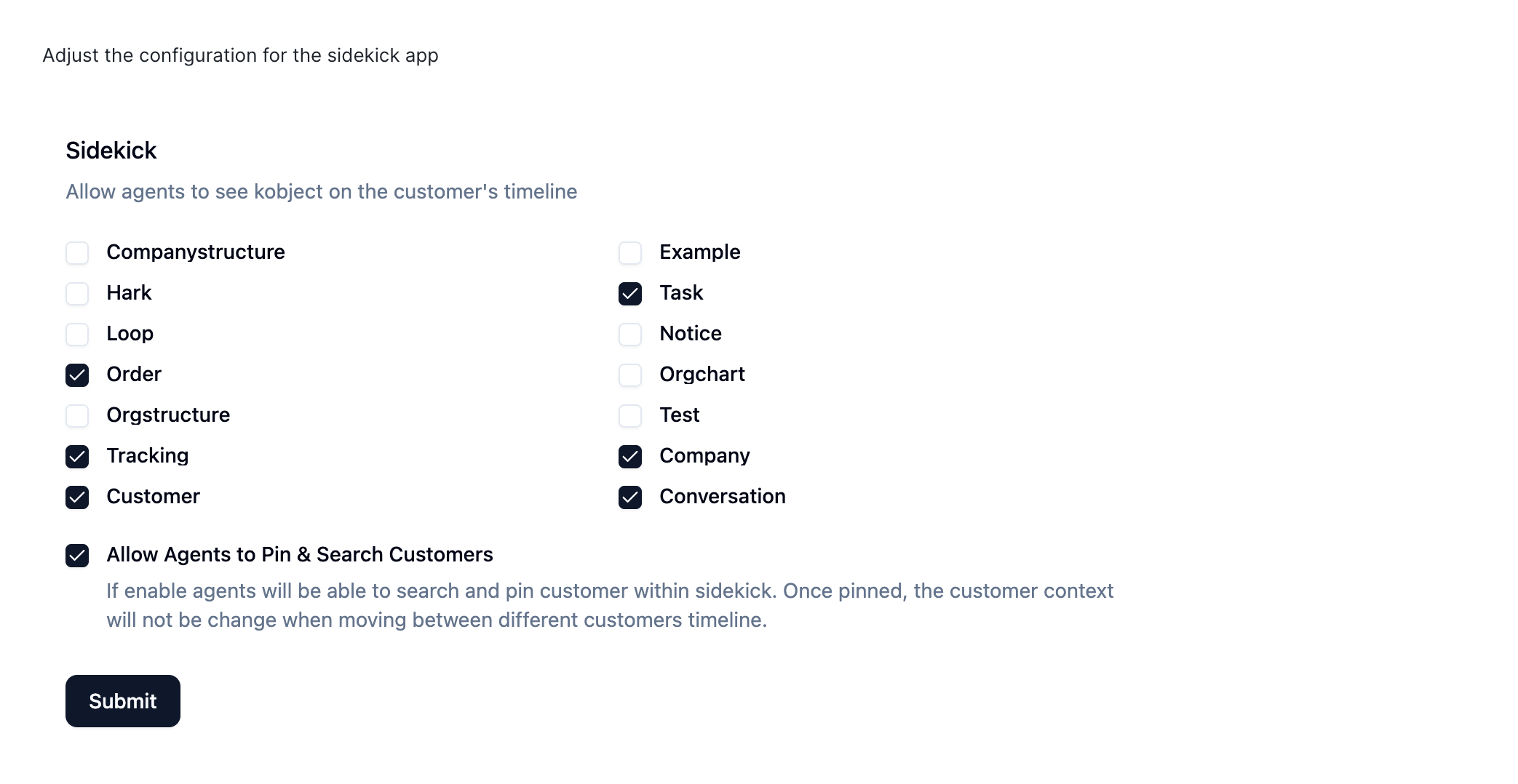
Sidekick app settings—pick klasses for the widget and control pin & search for agents.
Sidekick in the agent workspace
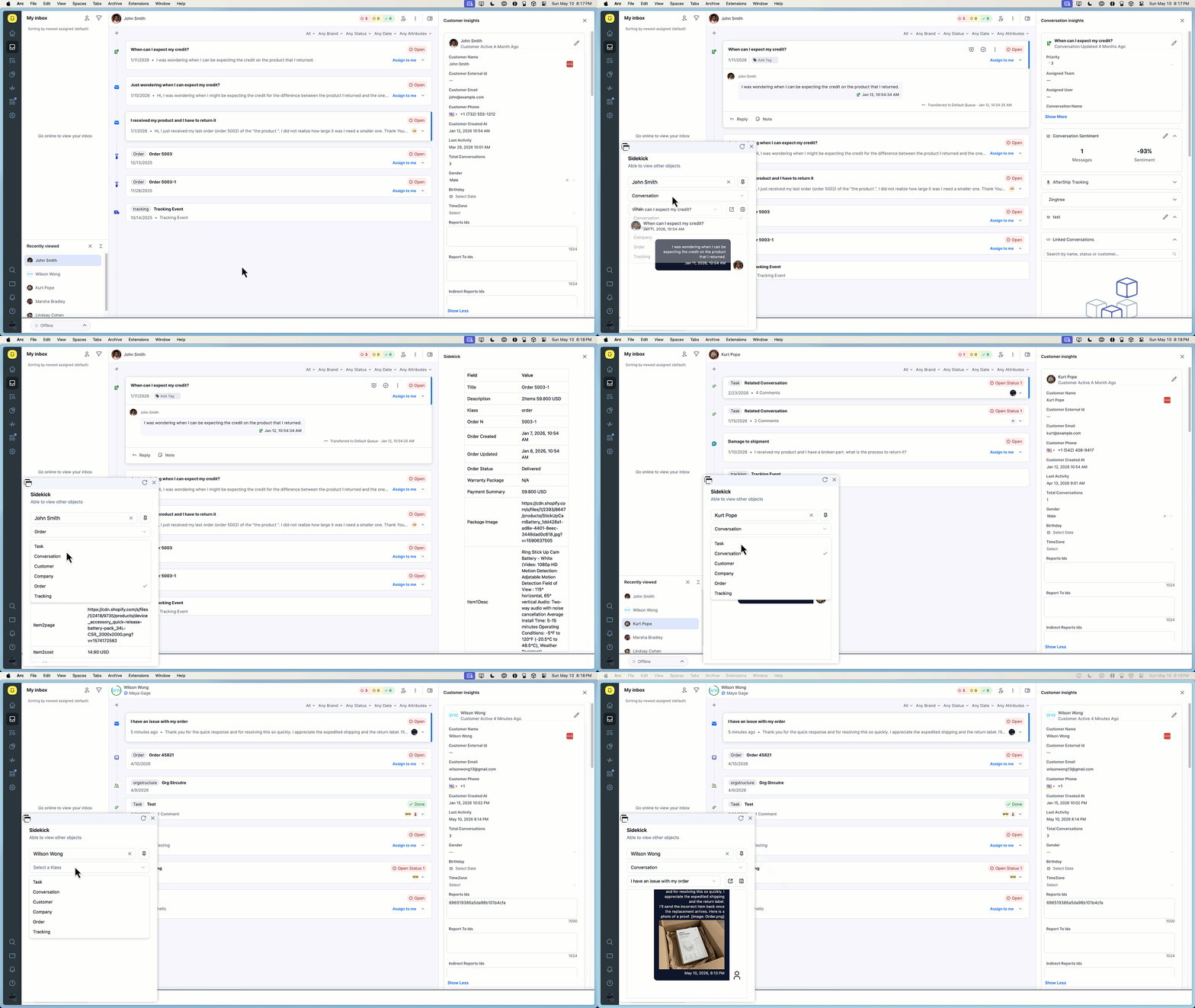
Agents open Sidekick from the Kustomer sidebar to see customer insights, search, pinned customers, and the data you enabled—alongside conversations and timeline objects.
For dashboard setup, API keys, and Kustomer subdomains, see Get started. Task Kanban: Task Kanban. For common errors, see Troubleshooting.